

In a previous discussion, we explored the use of the nconnect option with Dell’s new multipath driver to optimize performance by establishing multiple network connections to a PowerScale cluster. In this blog, we will delve deeper into the capabilities of this driver by incorporating the remoteports option, which allows us to connect to multiple nodes within the cluster, further boosting performance and ensuring redundancy.
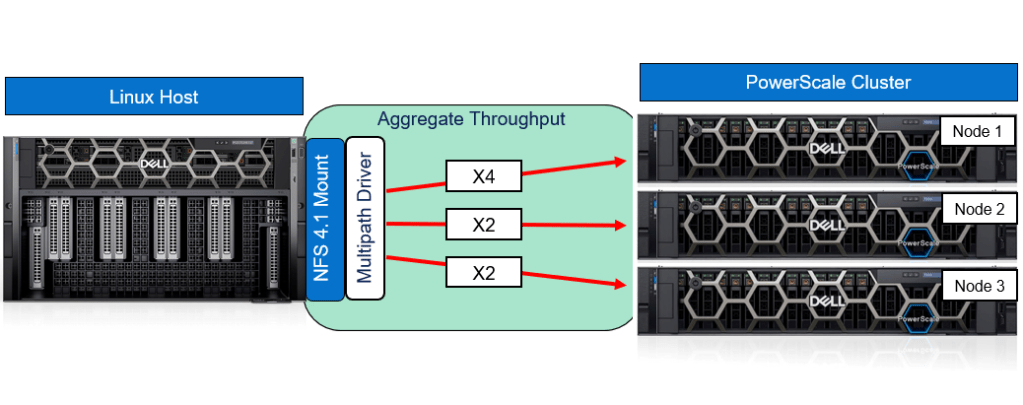
Our aim will be to establish a connection from our ubuntu host to each of our nodes in our three node powerscale cluster over 8 TCP sockets as illustrated below.
Setting Up SmartConnect
Before we dive into the multipath setup, it’s essential to have a properly configured SmartConnect environment. SmartConnect is a feature within PowerScale that provides load balancing, failover, and a unified access point for clients connecting to the cluster.
Wait !? can the OneFS Smart connect feature be leveraged in this topology ?
Yes, absolutely! The OneFS SmartConnect feature is integral to this topology and significantly enhances performance, load balancing, and high availability.
Here’s how SmartConnect is leveraged, even when using the multipath driver with the remoteports option:
- Load Balancing:
- SmartConnect distributes client connections across multiple nodes within the PowerScale cluster. When you use the
remoteportsoption, you’re specifying individual node endpoints to ensure multiple connections to specific nodes. However, by using the SmartConnect IP address for your mount command, SmartConnect still oversees the initial connection process, balancing the load by directing traffic to the appropriate nodes and ensuring no single node is overburdened.
- SmartConnect distributes client connections across multiple nodes within the PowerScale cluster. When you use the
- Failover and High Availability:
- SmartConnect plays a crucial role in maintaining high availability. Even though the
remoteportsoption targets specific nodes, SmartConnect ensures that if a node becomes unavailable, client connections are redirected to healthy nodes without interruption. This seamless failover is essential for environments where uptime is critical.
- SmartConnect plays a crucial role in maintaining high availability. Even though the
- Simplified Access with Multipath:
- While the multipath driver, combined with
remoteports, allows for direct connections to individual nodes, using the SmartConnect IP address in your mount command simplifies client access. This single IP address, provided by SmartConnect, abstracts the complexity of the underlying nodes, allowing administrators to manage the cluster more easily while still leveraging the benefits of multipath connectivity.
- While the multipath driver, combined with
- Scalability:
- As you scale your PowerScale cluster by adding more nodes, SmartConnect automatically includes these new nodes in its load balancing and failover processes. The
remoteportsconfiguration can also be updated to include additional nodes, ensuring that as your storage needs grow, both SmartConnect and the multipath driver can scale together without significant reconfiguration.
- As you scale your PowerScale cluster by adding more nodes, SmartConnect automatically includes these new nodes in its load balancing and failover processes. The
In summary, even though we specify individual node endpoints using the remoteports option with the multipath driver, our mount operation still benefits from SmartConnect’s capabilities by using the SmartConnect IP address. This combination allows us to maximize performance, ensure high availability, and simplify access and management within a scalable and resilient storage environment.
Configuring SmartConnect on PowerScale
- Subnet and IP Pool Configuration:
- Log in to the OneFS Web Administration Interface.
- Navigate to Cluster Management > Networking
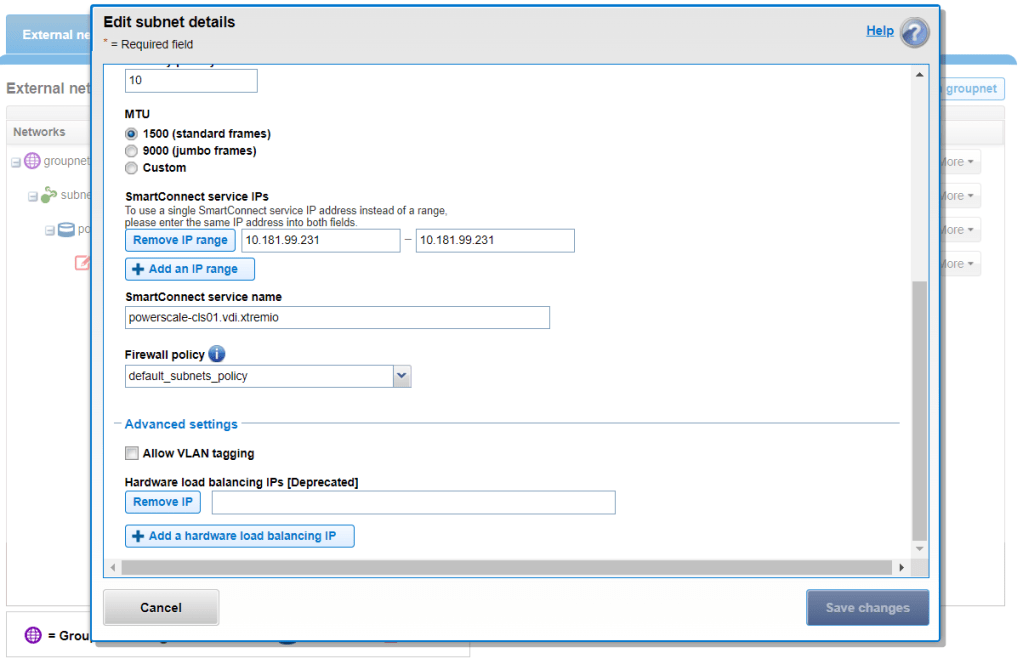
- Create a new subnet (or edit on existing subnet) that includes your node IP addresses (In my case, im edit my existing network
10.181.99.0/24to add a SmartConnect IP address). - Set a SmartConnect Service IP (e.g.,
10.181.99.231), which will be used by clients to access the cluster. (In this test cluster setup I have just configured one smart connect IP address)
- DNS Configuration:
- On your DNS server, create a new A record pointing to the SmartConnect Service IP, or configure a DNS delegation if your setup is more complex.
- i.e. in my case –
powerscale-cls01 should resolve to IP 10.181.99.231 - This configuration allows clients to resolve the SmartConnect Zone Name to the correct IP address, enabling seamless load balancing and failover.
- Testing SmartConnect:
- Ensure DNS is setup correctly on your client machine
- Ping the SmartConnect Service IP and DNS name from a client machine to ensure proper resolution.
- For example, you can use
nslookupordig: - If your DNS and search suffix are correctly configured,
nslookupshould resolvepowerscale-cls01to an the smartconnect ip address configured
root@ubuntu-22-04:/home/damian# nslookup powerscale-cls01
Server: 127.0.0.53
Address: 127.0.0.53

#53Non-authoritative answer:
Name: powerscale-cls01.vdi.xtremio
Address: 10.181.99.231
Connecting to Multiple Nodes with remoteports
With SmartConnect configured, we can now leverage the remoteports option in the multipath driver to connect to multiple nodes in the cluster. This setup not only enhances performance by distributing the load across several nodes but also provides higher availability in case one node becomes unreachable.
Command for Mounting with remoteports
Next we’ll connect to the PowerScale clusters SmartConnect endpoint of powerscale-cls01.vdi.xtremio (ip address – 10.181.99.231) using both the nconnect = 8 ( to specify 8 TCP sessions ) and remoteports = 10.181.99.228-10.181.99.230 (encompassing the three front end ports of our PowerScale nodes)
mount -t nfs -o vers=4.1,nconnect=8,remoteports=10.181.99.228-10.181.99.230 powerscale-cls01.vdi.xtremio:/ifs/test-multipath /mnt/nfs_share_multipath
Here’s a breakdown of the command:
-t nfs: Specifies the file system type.-o vers=4.1: Specifies NFS version 4.1, which is recommended for its support of sessions and improved performance.nconnect=8: Establishes eight TCP connections for improved throughput.remoteports=10.181.99.228-10.181.99.230: Connects to the specified nodes within the cluster. This option distributes the load and ensures that if one node fails, the other can take over.powerscale-cls01.vdi.xtremio:/ifs/test-multipath: Specifies the cluster and directory to be mounted./mnt/nfs_share_multipath: The local mount point for the NFS share.
Lets Verify
On our Ubuntu client we can see the share is successfully mounted using the multipath driver (I used the df -h command to verify)
powerscale-cls01.vdi.xtremio:/ifs/test-multipath 235G 1.9G 167G 2% /mnt/nfs_share_multipathOver on our PowerScale array logging into any node I can see the global mount info – I can see we have 3 connections from our client to this cluster. Great ! our Handles and Opens colums are at zero as we dont have any IO yet.

Lets send some IO to this share – now we can see 8 TCP connections across three nodes as was out intended outcome

Benefits of Using remoteports
The use of remoteports in conjunction with nconnect provides several key benefits:
- Enhanced Performance:
- By connecting to multiple nodes simultaneously, data transfer rates can significantly increase, particularly in environments with high I/O demands.
- The
nconnectoption further enhances this by opening multiple connections per node, maximizing the throughput.
- Improved Redundancy:
- The
remoteportsoption ensures that if one node in the cluster becomes unavailable, the system can seamlessly continue operations using the remaining nodes. - This setup is critical for maintaining high availability in mission-critical environments.
- The
- Scalability:
- As your PowerScale cluster grows, additional nodes can be easily integrated into the
remoteportsconfiguration, allowing for linear scaling of performance and redundancy.
- As your PowerScale cluster grows, additional nodes can be easily integrated into the
Lets try it out !
Conclusion
By configuring SmartConnect and utilizing the remoteports option in Dell’s new multipath driver, administrators can significantly enhance the performance, redundancy, and scalability of their PowerScale environments. This approach is particularly beneficial in high-performance computing environments where maximizing throughput and ensuring high availability are paramount.
Whether you’re managing a large-scale data center or a specialized lab environment, these configurations offer a robust solution for leveraging the full power of Dell’s PowerScale storage systems. As technology continues to evolve, keeping up with the latest tools and techniques, like those discussed here, will ensure your storage infrastructure remains both performant and resilient.
 All things Unstructured Data
Leave a comment